Category: WordPress Development

  • 5 Signs Your Business Website Is Losing You Customers

    5 Signs Your Business Website Is Losing You Customers

    If you’re searching for the signs your website needs a redesign, it’s probably because something already feels off — the inquiries aren’t coming, or the site just doesn’t feel like “you” anymore.

    Having a website isn’t the same as having a website that works for you.

    Most small business owners assume that once a site is live, the job is done. It sits there, it looks fine, and surely it’s bringing in a few customers here and there.

    But a website that quietly underperforms doesn’t just fail to help you. It actively pushes people away — toward a competitor’s site, one tab over.

    If you’ve had a nagging feeling that your website should be doing more for your business, you’re probably right. Below are the most common signs your website needs a redesign, and what each one is really costing you.

    5 signs your website needs a redesign

    If two or more of these sound familiar, it’s not a coincidence — it’s a pattern worth fixing.

    1. It Loads Slowly

    You click a link, and you wait. Three seconds. Five seconds. Maybe it never quite finishes loading.

    Most visitors won’t wait that long. They didn’t come to test your patience — they came to find an answer, fast. If your site hesitates, they bounce back to the search results and click the next listing instead.

    Here’s the part that stings: that visitor doesn’t even know you. They never read your About page or saw your portfolio. They just know your site was slow, and that was enough.

    Speed isn’t a technical nice-to-have. It’s the first impression your business makes, before a single word is read.

    Fix hint: Compressing images and cleaning up unnecessary plugins usually solves most of this. You can check your current load time with a free tool like Google PageSpeed Insights.

    2. It Looks Broken or Outdated on Mobile

    Open your own website on your phone right now. Really — go look.

    Are buttons too small to tap accurately? Does text run off the edge of the screen? Do images stack strangely or overlap?

    Most of your visitors are on their phones, often while comparing you to two or three other businesses in the same search. A clunky mobile experience is one of the most visible signs your website needs a redesign, because it shows up the moment someone glances at their screen. If your site looks cramped, glitchy, or stuck in 2014 on mobile, it reads as a signal — fairly or not — that your business itself might be a little behind.

    People don’t file a complaint when this happens. They just quietly leave and try the next result.

    Fix hint: A responsive redesign ensures your site adjusts cleanly to any screen size, not just desktops. Google’s mobile-friendly test is a quick way to see how your site currently holds up.

    3. Visitors Don’t Know What You Do Within 5 Seconds

    Picture someone landing on your homepage for the very first time. They don’t read — they scan.

    Within about five seconds, they’re deciding: is this the right business, and can I trust it? If your homepage opens with a vague tagline, a stock photo, and no clear explanation of what you actually offer, that decision goes against you.

    This is one of the most common and most fixable problems on the list — and one of the clearest signs your website needs a redesign rather than just a few tweaks. Business owners often know their value so well that they forget to spell it out simply for a stranger seeing it for the first time.

    Clarity beats cleverness here, every time.

    Fix hint: Your homepage headline should say exactly who you help and how, in plain language — no guessing required.

    4. There’s No Clear Next Step

    Let’s say a visitor likes what they see. They’re interested. Now what?

    If there’s no obvious button, form, or phone number telling them what to do next, many of them will simply do nothing. Not because they weren’t interested — because you didn’t ask.

    This is one of the costliest gaps on a small business website, precisely because it’s invisible. The site looks fine. Nothing’s “broken.” But interest that never gets directed anywhere quietly evaporates.

    A website’s job isn’t just to inform. It’s to guide someone from curious to contacted.

    Fix hint: Every page should have one clear action — “Get a Quote,” “Book a Call,” “Contact Us” — and it should be easy to find.

    5. You Can’t Update It Yourself — So You Avoid It

    When was the last time you updated your site? If the honest answer is “I’m not sure” or “I’d have to ask someone,” that’s a sign worth paying attention to.

    A website that’s hard to edit becomes a website that doesn’t get edited. Old hours, outdated services, last year’s promotions — they all stay up simply because changing them feels like a hassle.

    Over time, this creates a quiet kind of neglect. The site isn’t actively broken, but it’s not actively representing your business either. And customers can sense when information feels stale.

    Fix hint: A well-built site should let you update text, images, and basic content yourself, without needing to call anyone.

    If your site has any of these signs, they’re all fixable. Get in touch and let’s figure out what it would take.
  • How Much Does a Custom WordPress Website Cost?

    How Much Does a Custom WordPress Website Cost?

    Trying to figure out your custom WordPress website cost? You asked three developers for a quote. One said $500. Another said $3,000. The third said $8,000 and didn’t even explain why.

    Now you’re more confused than when you started.

    If this sounds familiar, you’re not alone. WordPress pricing feels like a black box, and most developers don’t do a great job explaining what you’re actually paying for.

    Let’s fix that.

    What Makes WordPress Website Pricing So Confusing?

    Here’s the truth: there’s no fixed price for a “WordPress website.”

    It’s not like buying a car where you can compare the same model across dealerships. Every project is different, and so is every developer’s process.

    A few reasons quotes vary so much:

    • Some developers use pre-built themes. Others build custom designs from scratch.
    • Some include content writing and SEO setup. Others just hand you a bare template.
    • Some price for “today.” Others price for “today plus six months of support.”
    • Experience level varies a lot — a student charging $300 and a senior developer charging $3,000 are not offering the same thing.

    None of these approaches are automatically wrong. But if a developer doesn’t explain what’s included, you have no way to compare quotes fairly.

    That’s really the core problem. It’s not that pricing is random — it’s that it’s rarely explained.

    Main Factors That Affect the Cost

    Once you understand what actually drives the price, quotes start making a lot more sense. These are the main factors that shape your custom WordPress website cost.

    Design complexity

    A simple, clean layout costs less than a fully custom design built around your brand. The more unique sections, animations, and custom layouts you want, the more time it takes to build.

    Custom features

    Basic websites just display information. But if you need things like:

    • Booking or appointment systems
    • Membership or login areas
    • Custom forms with complex logic
    • Integrations with other tools (CRMs, payment systems, etc.)

    …the cost goes up. These features require custom development, not just plugins.

    Content (text, images, copywriting)

    Many people forget this one. If you already have your text and images ready, that saves time and money.

    If a developer has to write your copy, source images, and structure your content from scratch, that’s additional work — and it should be priced as such.

    Ecommerce

    Selling products online adds real complexity. You’re not just building pages anymore — you’re dealing with:

    • Product catalogs and categories
    • Payment gateway setup
    • Shipping and tax rules
    • Inventory management

    A basic “contact us” website and an online store are two very different projects, even if they’re both “WordPress.”

    Ongoing maintenance

    WordPress needs updates — plugins, themes, security patches. Some developers bundle a maintenance plan. Others leave it entirely up to you.

    This isn’t always included in the upfront cost, but it’s worth asking about, because it affects your real long-term cost.

    Rough Price Ranges by Website Type

    These are general ranges based on typical project scope. Your actual quote will depend on your specific needs, so treat these as a starting point for conversations, not a fixed price list.

    Simple business website (5–8 pages)

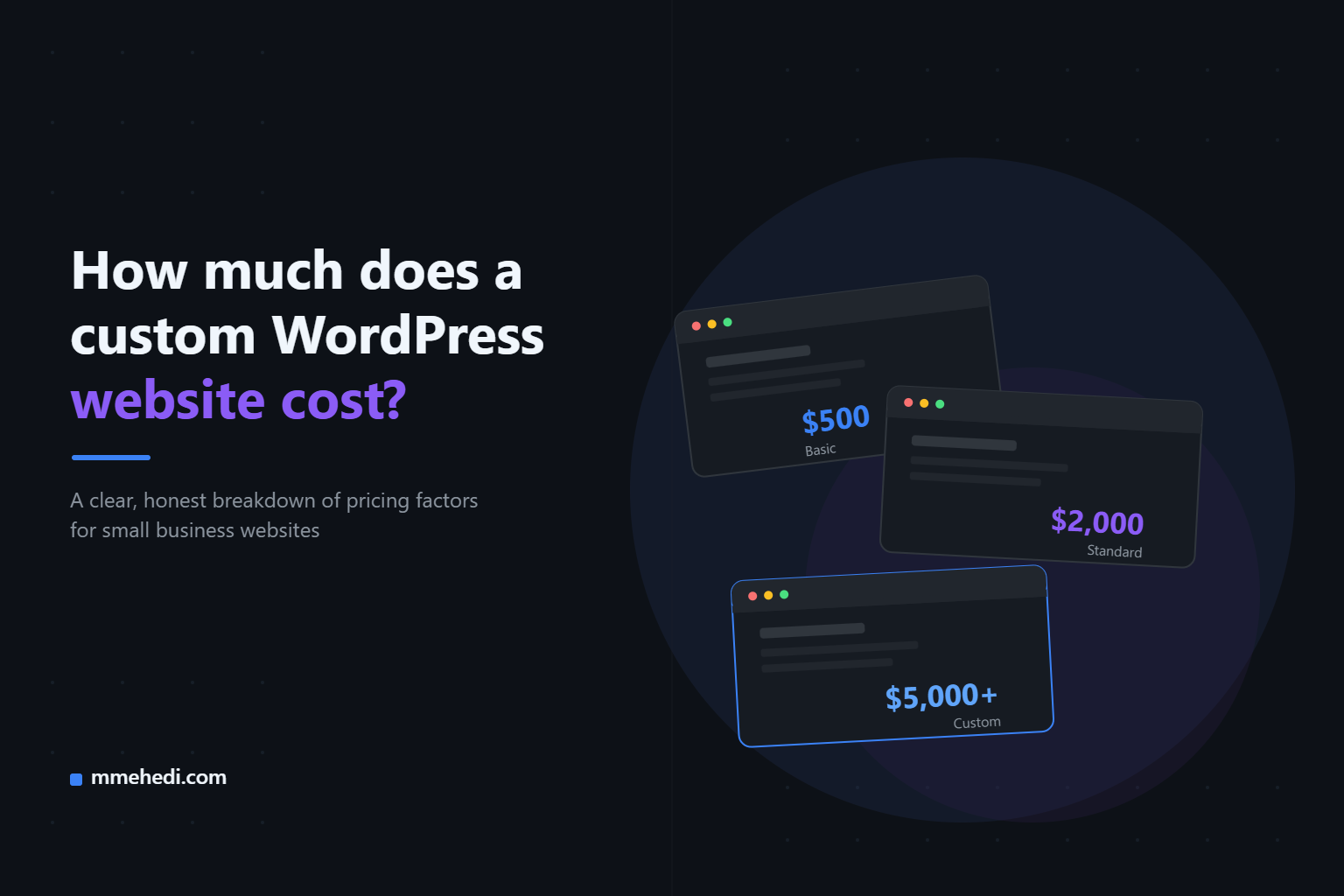
    Roughly $500–$2,000

    This usually covers a clean, professional design, basic pages (Home, About, Services, Contact), and mobile-friendly setup using a quality theme.

    Portfolio or personal brand website

    Roughly $400–$1,500

    Often simpler in structure but may need more attention to visual design, since it’s representing you or your work directly.

    Custom-designed business website

    Roughly $1,500–$5,000

    This includes a unique design (not just a theme), more custom sections, and sometimes basic custom functionality.

    Ecommerce website

    Roughly $1,500–$8,000+

    The range is wide because it depends heavily on the number of products, payment/shipping complexity, and whether custom features are needed.

    Ongoing maintenance (optional)

    Roughly $30–$150/month

    Covers updates, backups, and basic monitoring, depending on what’s included.

    Again — these are general patterns, not promises. A developer should always give you a number based on your specific project, not a generic price sheet.

    What Cheap Usually Means (and the Risks)

    A low price isn’t automatically a red flag. Some developers genuinely charge less because they’re newer, work efficiently, or keep things simple.

    But it’s worth understanding what “cheap” sometimes means in practice:

    • Generic templates with no customization. Your site might end up looking like hundreds of others.
    • No real support after launch. If something breaks, you’re on your own.
    • Shortcuts on security. Outdated plugins or weak setups can lead to hacked sites down the line.
    • Vague scope. “I’ll build you a website” without specifics often leads to extra charges later for things you assumed were included.

    The risk isn’t the price itself — it’s not knowing what you’re trading off to get that price.

    A good rule of thumb: if a quote seems unusually low, just ask what’s included. A good developer will tell you honestly. A vague answer is the real warning sign, not the number.

    How to Get an Accurate Quote

    You don’t need to know any technical terms to get a fair, accurate quote. You just need to be clear about a few things before you ask.

    Before reaching out, try to have answers to:

    • How many pages do you actually need?
    • Do you have content (text, images) ready, or do you need help creating it?
    • Do you need any special features (booking, payments, login areas)?
    • Is this a brand-new site or a redesign of an existing one?
    • Do you want ongoing support after launch, or just the build?

    The more specific you can be, the more accurate (and comparable) your quotes will be.

    And when you do get a quote, don’t be afraid to ask: “What exactly is included in this price?” A trustworthy developer won’t mind explaining it — and honestly, they should want to.

    Not sure what your project would cost? Send me a quick message
    — I’ll give you a realistic estimate, no strings attached.

  • How to Create Custom Gutenberg Blocks in WordPress: A Simplified Guide for 2025

    How to Create Custom Gutenberg Blocks in WordPress: A Simplified Guide for 2025

    The Gutenberg Block Editor has revolutionized WordPress content creation by providing a flexible, intuitive way to build pages and posts. But sometimes, default blocks don’t quite fit your unique needs. That’s where custom Gutenberg blocks come in.

    In this post, you’ll learn how to create custom blocks easily—to add personalized, reusable design elements to your WordPress site without heavy coding. Even beginners can follow along!

    Why Create Custom Blocks?

    • Reusability: Build once, use everywhere.
    • Consistency: Maintain a coherent design system.
    • Flexibility: Tailor blocks exactly to your needs.
    • Better client control: Allow clients to edit content without breaking layouts.

    Two Ways to Create Custom Blocks

    1. No-Code / Low-Code Approach Using Block Patterns

    Block patterns are predefined block layouts you can save and reuse. WordPress 6.8+ makes creating and managing these easier through the Block Editor interface.

    • Group multiple blocks into one.
    • Save the group as a reusable block or pattern.
    • Insert patterns on any page or post.
    • Use plugins like GutenKit for enhanced block pattern creation with drag-and-drop layouts and responsive design options.

    2. Coding Your Own Custom Blocks (Simplified)

    If you want more control or dynamic functionality:

    • Create a plugin to load your block files.
    • Register the block with registerBlockType.
    • Define your block’s editor and front-end markup using React components.
    • Use ACF Blocks for an easier bridged approach between PHP and React.

    Step-by-Step: Creating a Simple Custom Block

    1. Set up a new plugin folder in /wp-content/plugins/.
    2. Add your block registration PHP file.
    3. Create JavaScript files where you define block edit and save functions using React syntax.
    4. Enqueue scripts and styles properly.
    5. Activate your plugin in WordPress and start adding your custom block in the editor.

    Tips for Success

    • Use existing block libraries for inspiration.
    • Test blocks extensively in different browsers and devices.
    • Keep accessibility in mind—use semantic HTML and ARIA attributes.
    • Document your blocks so clients and teammates understand how to use them.

    Resources

    • WordPress Developer Handbook on Block Editor
    • GutenKit plugin for enhanced block controls
    • Official ACF Blocks documentation
  • Supercharge Your WordPress Site: Performance Boosting Tips for 2025

    Supercharge Your WordPress Site: Performance Boosting Tips for 2025

    Speed isn’t just a nice-to-have—it’s a must. In 2025, slow WordPress sites frustrate visitors, hurt conversions, and damage your search rankings. Whether you’re building for clients or your own brand, optimizing performance should be at the heart of every project. Here’s how to make your WordPress site fly.


    Start with the Right Hosting

    Not all hosts are created equal. Choose a provider that offers SSD storage, optimized server stacks, and a generous allocation of resources. Managed WordPress hosts (like Kinsta, WP Engine, or Cloudways) often deliver the best performance out of the box, but even shared hosting can be tuned for speed with the right setup.


    Pick a Lightweight, Well-Coded Theme

    bloated theme is one of the biggest speed killers. Avoid themes packed with unnecessary features, sliders, and complex layouts. Instead, opt for a lightweight, block-based theme—especially those built for WordPress 6.8+ and optimized for performance. Always test a theme’s speed using tools like GTmetrix or Google PageSpeed Insights before committing.


    Optimize Every Image

    Images can make or break your site’s load time. Always compress images before uploading, use modern formats like WebP, and consider lazy loading to defer off-screen images until they’re needed. Plugins like Smush or Imagify automate much of this process.


    Be Selective with Plugins

    Every plugin adds overhead—some more than others. Audit your plugins regularly. Remove what you don’t use, and replace resource-heavy plugins with lighter alternatives. Test your site’s speed after adding a new plugin to catch any slowdowns early.


    Enable Caching and a CDN

    Caching stores a static version of your site, so repeat visitors load pages almost instantly. Plugins like WP Rocket, LiteSpeed Cache, or W3 Total Cache make this easy. Pair caching with a Content Delivery Network (CDN) to serve files from servers closer to your visitors, slashing load times worldwide.


    Minify and Combine Files

    Reduce the number of HTTP requests by merging CSS and JavaScript files and minifying them to remove unnecessary characters. Plugins like Autoptimize handle this automatically. Fewer, smaller files mean faster rendering.


    Keep Everything Updated

    Outdated WordPress core, themes, and plugins are security risks—and can also hurt performance. Enable auto-updates for minor releases, and check for updates at least weekly.


    Advanced Tweaks for the Ambitious

    • Database Optimization: Clean up your database with a plugin like WP-Optimize to remove spam, revisions, and transients.
    • Reduce External Scripts: Limit analytics, ads, and third-party scripts. Each external request slows your site.
    • Performance Monitoring: Use tools like Query Monitor to identify bottlenecks.
    • Consider Headless or Static Options: For ultimate speed, explore headless WordPress with Next.js or static site generators.

    Make It a Habit

    Performance optimization isn’t a one-time fix. Regular audits, testing, and tuning will keep your site fast as it grows. Bookmark tools like GTmetrix, WebPageTest, and Google’s PageSpeed Insights for ongoing checks.


    Ready to Speed Up?

    Try these tips on your next project—or your own site—and watch your load times drop. Fast sites keep users happy, boost SEO, and help you stand out in 2025.

  • 8 Essential WordPress Security Habits Every Developer Must Master in 2025

    8 Essential WordPress Security Habits Every Developer Must Master in 2025

    Security should never be an afterthought. As a WordPress developer, it’s your responsibility to build sites that aren’t just fast and beautiful, but safe. Whether you’re launching a client’s portfolio or your own blog, these are the daily habits that will keep your websites—and reputation—protected in 2025.


    1. Always Use Strong, Unique Passwords

    This sounds basic, but brute-force attacks are still a major threat. Never use predictable passwords like “admin” or “password123.” Instead, generate and store strong, random passwords for every site, admin, and FTP account. Consider using a password manager to keep track of them all.


    2. Enable HTTPS on Every Site

    An SSL certificate (HTTPS) encrypts data between your site and visitors—critical for login pages, forms, and user privacy. Most hosts offer free SSL via Let’s Encrypt; there’s no excuse not to use it. Plus, browsers now mark non-HTTPS sites as “Not Secure,” which scares users and hurts SEO.


    3. Keep WordPress, Plugins, and Themes Updated

    WordPress core, plugins, and themes get patched for vulnerabilities all the time. One of the easiest ways hackers get in is by exploiting known, outdated bugs. Enable auto-updates for minor releases, and check your sites weekly for updates to plugins and themes.


    4. Limit Login Attempts

    By default, WordPress allows unlimited login attempts—a recipe for brute-force attacks. Install a plugin like Limit Login Attempts Reloaded to block IPs after a few failed tries, adding a simple but powerful layer of defense.


    5. Disable PHP File Execution in Sensitive Directories

    Hackers sometimes inject malicious PHP files into folders like /wp-content/uploads/. Add a .htaccess file in these directories containing <Files *.php> deny from all </Files> to prevent execution. This stops one common attack vector cold.


    6. Regular Backups Are Non-Negotiable

    Use a reliable plugin (like UpdraftPlus or WP Vivid) to schedule automated backups—ideally stored offsite. If disaster strikes, you can restore in minutes. Remember: Your client’s data (and your time) are too valuable to risk.


    7. Install a Security Plugin

    Plugins like Solid Security or Wordfence can scan for malware, block suspicious IPs, harden your site, and send alerts if anything looks off. They’re not a silver bullet, but they add critical protection.


    8. Monitor for Suspicious Activity

    Use tools to monitor file changes, logins, and updates in real time. Plugins like Activity Log give you visibility into who’s doing what on your site.


    Bonus: Educate Your Clients

    The weakest link is often the end user. Teach clients about secure passwords, the dangers of clicking random links, and the importance of updates. A little education goes a long way.


    Start Today, Sleep Better Tonight

    WordPress security isn’t about fear—it’s about confidence. By making these habits second nature, you’ll stand out as a developer who takes both performance and protection seriously. Your clients (and your inbox) will thank you.


    What’s your go-to security tip? Share it in the comments below—let’s make 2025 safer for WordPress, together.

  • Building a Headless WordPress Portfolio with Next.js in 2025

    Building a Headless WordPress Portfolio with Next.js in 2025

    In the fast-evolving world of web development, headless WordPress has emerged as a top choice for developers who want flexibility, speed, and modern tooling. I recently built a personal portfolio site that leverages WordPress as a content management system (CMS) and Next.js for the front end—here’s how I did it, what I learned, and why you might want to try something similar.


    Why Go Headless?

    With traditional WordPress, your site’s front end and back end are tightly coupled. Headless WordPress decouples them: WordPress only handles content creation and management, while a separate framework (like React, Vue.js, or Next.js) powers the user experience. This setup offers blazing-fast performance, greater design freedom, and access to a rich JavaScript ecosystem.


    My Tech Stack

    • WordPress: The latest version (6.8+), set up on a reliable host, with the REST API or GraphQL enabled.
    • Next.js: A React framework for static and server-rendered sites. It’s perfect for modern portfolios and blogs.
    • ACF (Advanced Custom Fields): For flexible content modeling in WordPress.
    • Tailwind CSS: For fast, responsive styling.
    • Vercel: For deployment and hosting.
    • GitHub: For version control and collaboration.

    Step-by-Step Build Process

    1. Set Up Your WordPress Site

    • Install WordPress on your chosen hosting provider.
    • Enable the REST API (or install WPGraphQL if you prefer GraphQL).
    • Create a ‘Projects’ custom post type (easy with plugins like Custom Post Type UI).
    • Add custom fields for project details (title, description, images, links, technologies used).
    • Populate your portfolio with a few projects.

    2. Build the Front End with Next.js

    • Initialize a Next.js project with npx create-next-app.
    • Fetch data from WordPress using fetch in Next.js’s getStaticProps for fast, static rendering.
    • Design your portfolio layout—keep it clean, visually oriented, and mobile-friendly.
    • Integrate project details from your custom fields, displaying title, description, images, and links.
    • Add a blog section pulling from WordPress posts if you want to share thoughts and updates.

    3. Deploy and Optimize

    • Deploy your Next.js site on Vercel (it’s free for starters and super fast).
    • Enable incremental static regeneration to keep content fresh without full rebuilds.
    • Optimize images and assets for speed.
    • Set up analytics (Google Analytics, Vercel Analytics, or something privacy-focused).
    • Test on all devices—speed, functionality, and accessibility matter.

    Lessons Learned

    • Performance is transformative: Headless WordPress with Next.js delivers near-instant page loads.
    • Flexibility is key: You can use any front-end tech or design system you like, without being limited by WordPress themes.
    • Content management remains familiar: Clients or collaborators can update content in WordPress’s familiar admin, while your dev team works in modern tooling.
    • Edge cases exist: Previewing content before it’s published and handling authentication (for protected content) require extra plugins or code—e.g., WordPress’s Preview API or Headless WordPress preview plugins.

    Example Code Snippet

    js// In your Next.js page
    export async function getStaticProps() {
      const res = await fetch(
        'https://your-wordpress-site.com/wp-json/wp/v2/projects'
      );
      const projects = await res.json();
      return { props: { projects } };
    }
    

    Call to Action

    If you’re a WordPress developer in 2025, try a headless project. Whether it’s a portfolio, blog, or client site, the combination of WordPress content management and a modern JavaScript front end is powerful, scalable, and future-proof.

    Questions? Suggestions? Drop a comment below—let’s build the future of WordPress, together.